


Keep your laptop clean, protected and performing reliably with practical care habits for everyday use. From keeping cooling vents clear and cleaning the screen safely to looking after the battery, charger and keyboard, a little regular maintenance can help reduce unnecessary wear and extend the working life of your laptop.
A few simple habits can help protect your laptop and keep it performing reliably.
Keep cooling vents free from dust and avoid covering them while the laptop is operating.
Use a soft microfibre cloth and avoid spraying liquid directly onto the laptop display.
Use your laptop on a desk, table or other stable surface that allows air to circulate underneath.
Keep drinks and liquids away from the keyboard, ports and charger whenever possible.
Use the correct charger and avoid tightly bending, pulling or twisting the power cable.
Use a protective laptop sleeve or padded bag and avoid placing heavy objects against the screen.
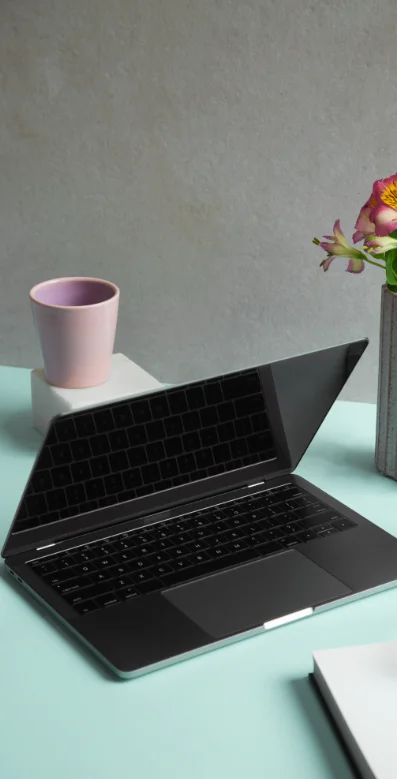

Cosmetic imperfection doesn’t change the need for proper care. All appliances sold by Smart Electrical Clearance Outlet are tested for performance and backed by warranty.
Get in touch with our team if you notice any of the following:
Laptop Overheating
Battery Not Charging
Screen or Display Issues
Keyboard or Trackpad Problems
Keyboard or Trackpad Problems
Lightly clean the screen, keyboard and exterior whenever dust or fingerprints become noticeable. For frequently used laptops, a gentle clean every one to two weeks can help prevent dust and debris from building up around the keyboard, ports and ventilation areas.
Turn the laptop off and use a clean, soft microfibre cloth. Avoid pressing hard on the display or spraying cleaning liquid directly onto it. If additional cleaning is required, follow the screen-cleaning instructions provided by the laptop manufacturer.
It is better to use a laptop on a firm, stable surface. Soft materials such as bedding and cushions can obstruct ventilation openings and reduce airflow, which may cause the laptop to operate at higher temperatures.
Some warmth is normal, particularly during demanding tasks such as gaming, video editing or software updates. Excessive heat may be caused by restricted airflow, dust build-up, high ambient temperatures or a cooling-system issue. Make sure vents remain clear and contact support if overheating becomes persistent.
Modern laptops generally manage charging automatically, but heat and spending long periods at a very high state of charge can contribute to battery wear over time. If your laptop provides battery health, optimised charging or charge-limit settings, follow the manufacturer’s recommendations for those features.
Use the correct charger for your laptop and keep the cable away from sharp bends, heat and areas where it may be crushed. Disconnect it by holding the plug rather than pulling on the cable, and stop using a charger if the cable or connector becomes visibly damaged.
Switch the laptop off first. Gently wipe the keys with a soft cloth and carefully remove loose debris without forcing it deeper into the keyboard. Avoid pouring or spraying cleaning products directly between the keys.
Close the laptop completely and place it in a protective sleeve or padded laptop bag. Avoid storing heavy objects against the screen, and do not carry the laptop by the display or open lid.
No. The same everyday care principles apply. Keep the laptop clean and well ventilated, protect it during transport, use the correct charger and follow the manufacturer’s instructions for cleaning, charging and maintenance.



© 2026 Smart Electrical Outlet. | Terms & Conditions | Privacy Policy | All Rights Reserved | Website by SWE